
Plixus Central Equipment
For discontinued Central Equipment products, click here.
Central Units:
- 71.98.2902 – Plixus AE-R – EN | FR | NL | DE | ES | IT
- 71.98.2904 – Plixus AE-R Dante – EN | FR | NL | DE | ES | IT
- 71.98.2905 – Plixus MME Dante – EN | FR | NL | DE | ES | IT
Network Extender:
Power Management:
- 71.98.2930 – Plixus PS (power supply) – EN | FR | NL | DE | ES | IT
- 71.98.2931 – Plixus AE-R PS (spare power supply) – EN | FR | NL | DE | ES | IT
Licenses:
- Plixus System: CE Declaration of Conformity – View
Please note the following about the screen behavior of devices within the Plixus system:
Confidea FLEX (wired):
- The screen doesn’t dim.
- The screen goes to sleep after 3 hour of inactivity.
- The screen cannot be controlled through API.
- Conditions for resetting the screen saver: touching the screen, meeting state change, opening seat reordering, microphone button press.
Confidea FLEX G4 (wireless):
- The screen dims after 10 seconds.
- The screen goes to sleep after 3 hour of inactivity.
- The screen cannot be controlled through API.
- Conditions for resetting the screen saver: headphone insertion, meeting state change, opening seat reordering, microphone button press.
Lingua ID / Lingua ID-MM:
- The screen doesn’t dim.
- The screen goes to sleep after 1 hours of inactivity.
- The screen cannot be controlled through API.
- Conditions for resetting the screen saver: pressing a physical button, audio detected in the same booth (on the A-channel)
uniCOS:
- The screen doesn’t dim.
- The screen goes to sleep after 2 hours of inactivity. Note that if a uniCOS standby screen is set to a video stream, the device will still go to sleep after 2 hours.
- The screen cannot be controlled through API.
- Conditions for resetting the screen saver: touching the screen or any physical button.
If your system is running version 6.10 or earlier, you may notice bleeding or fading on the Nameplates. This can typically be improved by allowing the system to remain powered down for an extended period.
🔧 Follow these steps:
- Power down the entire Plixus system.
- Leave the system powered off for approximately two days.
- Power the system back on.
When the system restarts, it will resend the images to the Nameplates, which should noticeably improve the display quality.
💡 Note:
Starting from version 6.11.2, this issue has been addressed. The firmware of the nameplate has been improved with measures to prevent the bleeding or fading behavior without requiring any manual intervention.
To maintain optimal system performance and prevent potential critical errors caused by prolonged continuous operation, it is recommended to perform a complete system power cycle once per month.
Please follow the steps below:
- Shut down all equipment: Plixus central unit and conference devices. If the CoCon meeting management software is in use, also shut down the CoCon PC.
- Power on all conference devices first. After 90 seconds, power on the Plixus central unit.
- Once all devices and the central unit have fully completed their boot process, power on the CoCon PC.
💡 For smaller systems, all devices may be powered on simultaneously.
Click here to download the version compatibility matrix for Plixus CRP 6.x.
In case you need to update the Dante Card firmware, it is necessary to know which model and firmware version of the Dante Card is installed in your Plixus equipment.
1. Make sure your computer is connected to the Dante Card.
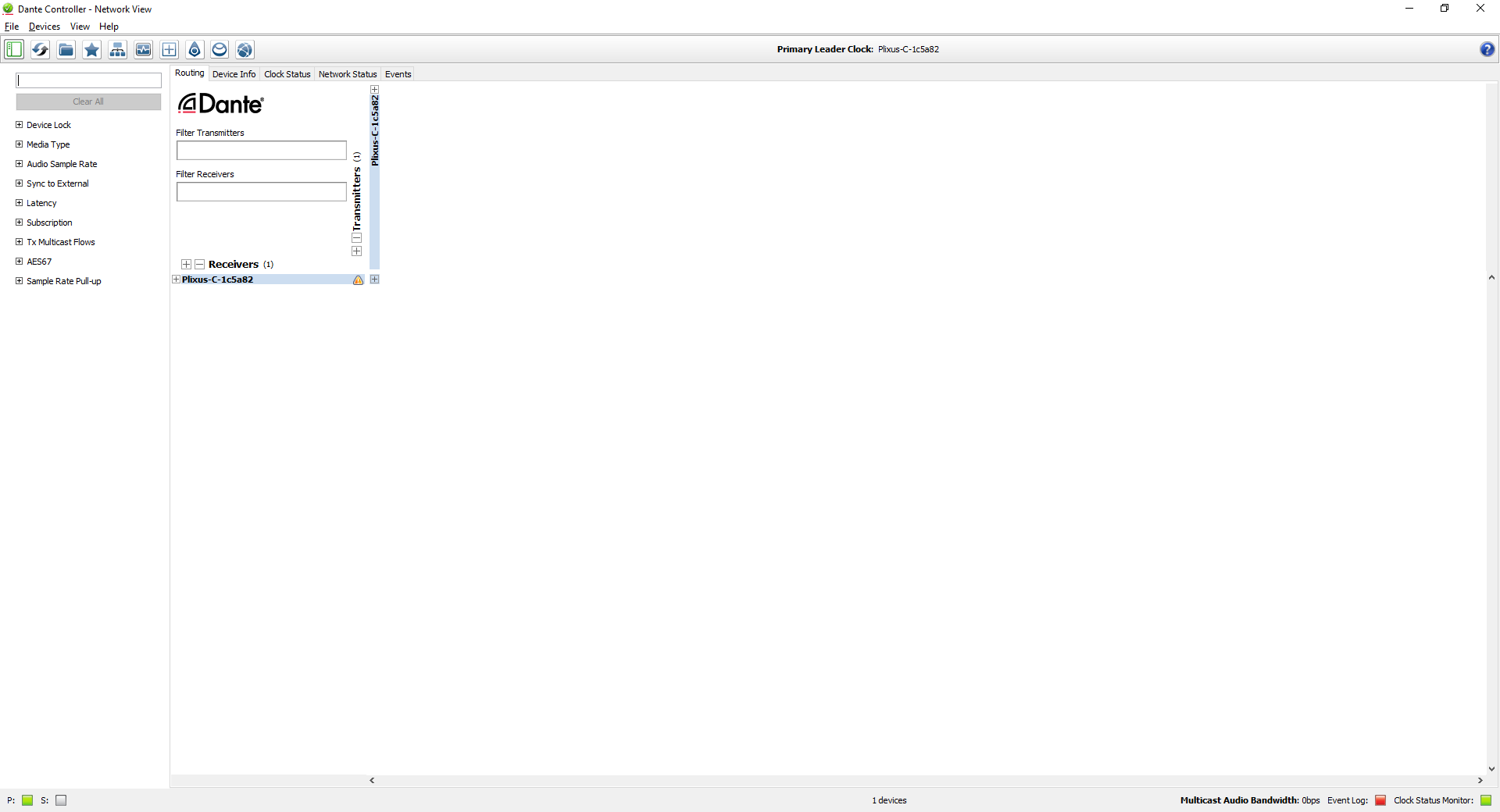
2. Open the Dante Controller. The following window opens:
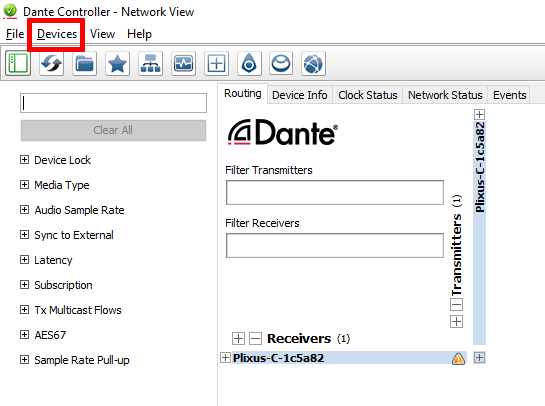
3. In the menu bar on top, click on Devices:
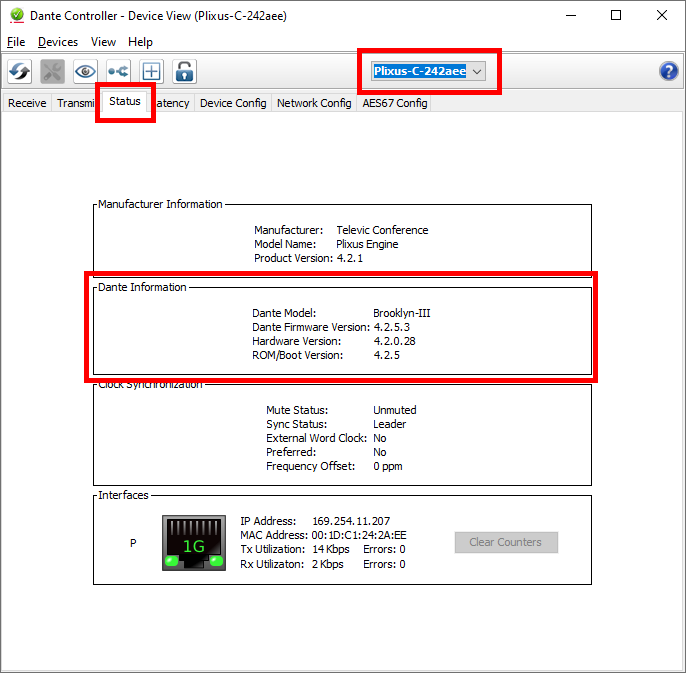
4. The following window opens. Click on the dropdown field on top to select the corresponding Plixus device, then click on the Status tab. The model and firmware version of your Dante Card will be indicated in the Dante Information section.
5. You can now download the appropriate Dante firmware update based on the version of your Dante Card.
Please refer to the Dante Controller manual for more information on how to update the Dante firmware: