
Confero
Please follow the browser requirements below when using the Confero web server:
- Chrome – Version 124 or higher
- Edge – Version 124 or higher
Below is a list of handsfree and mix-minus limitations for Confero (with a Plixus, Confidea G4 or coupled system).
Please, keep in mind that:
- Static mix-minus: during the configuration, each seat gets pre-assigned a dedicated mix-minus channel.
- Dynamic mix-minus:
- The assigned channels for seats with a microphone that is still open are preserved.
- When a new microphone is activated, a channel is assigned to it based on the number of remaining free channels.
- When a microphone deactivates, its channel returns to the pool of free channels.
- A microphone cannot become active if the maximum number of open microphones has been reached. A microphone that is still open must be switched off first.
- Max. number of internal audio channels with interpretation channels included: 64.
- Max. number of mix-minus channels with interpretation channels included: 64.
- Max. number of open microphone: 32.
⚠️ Important: Please note that the number of available channels depends on both the number of open microphones and the number of interpretation channels that are configured. To ensure enough channels are available, adjust the number of open microphones and interpretation channels accordingly.
|
|
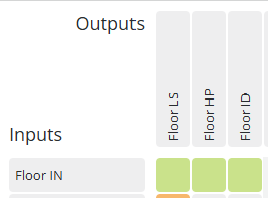
Default normal routing (with Floor LS) | Handsfree mode + Mix-minus + 1 Floor | Handsfree mode + Mix-minus + Multiple Floors (e.g. Floor LS / ID / HP) | Other microphone modes + Mix-minus + 1 Floor |
Other microphone modes + Mix-minus + Multiple Floors |
| Max. number of seats |
Refer to the Plixus Power Calculator |
||||
| Max. number of open microphones (inc. chairpersons & VIPs) |
32 |
31 | 29 | 31 |
29 |
| Seats that generate audio |
1-32 |
1-31 | 1-29 | – |
– |
|
Type of mix-minus |
– | Static* | Static* | Dynamic |
Dynamic |
* Static mix-minus is due to a hardware limitation
- Max. number of open microphones: 8 (6 delegates + 2 chairpersons / VIPs).
- The Plixus central unit sends a single common Floor channel to all Confidea G4 units. Each unit performs a self-subtraction locally.
|
|
Default normal routing | Handsfree mode + Mix-Minus |
Other microphone modes + Mix-Minus |
| Max. number of seats |
128 |
8 |
128 |
| Max. number of open microphones (inc. chairpersons & VIPs) |
8 (6 delegates + 2 chairpersons / VIPs) |
8 |
8 (6 delegates + 2 chairpersons / VIPs) |
|
Seats that generate audio |
1-8 | 1-8 |
– |
| Type of Mix-Minus |
– |
Static* |
Dynamic |
* Static Mix-Minus is due to a hardware limitation
As of now, in coupled systems, no microphone mode is compatible with the mix-minus feature.
This note applies to the following products:
- uniCOS PRO T (71.98.2005)
- uniCOS T/MM10 Mike (71.98.2005)
- uniCOS T/MM10 (71.98.2003)
- uniBOX PRO (71.98.2004)
It is possible to assign the interface of the uniCOS CORE to the uniCOS PRO and/or the uniBOX PRO with a screen.
Follow the steps below:
- Update your system. Please visit Televic’s software updates page here: https://www.televic.com/en/conference/support/software-updates/confero-for-plixus-software-updates.
- uniCOS PRO with uniCOS CORE interface: update to Confero version 7.16 or higher.
- uniBOX PRO with uniCOS CORE interface: update to Confero version 7.19 or higer.
- When your system is up-to-date, log in to Confero as a Technician.
- In the left-hand navigation menu, select Devices.
- Open the Device capabilities tab.
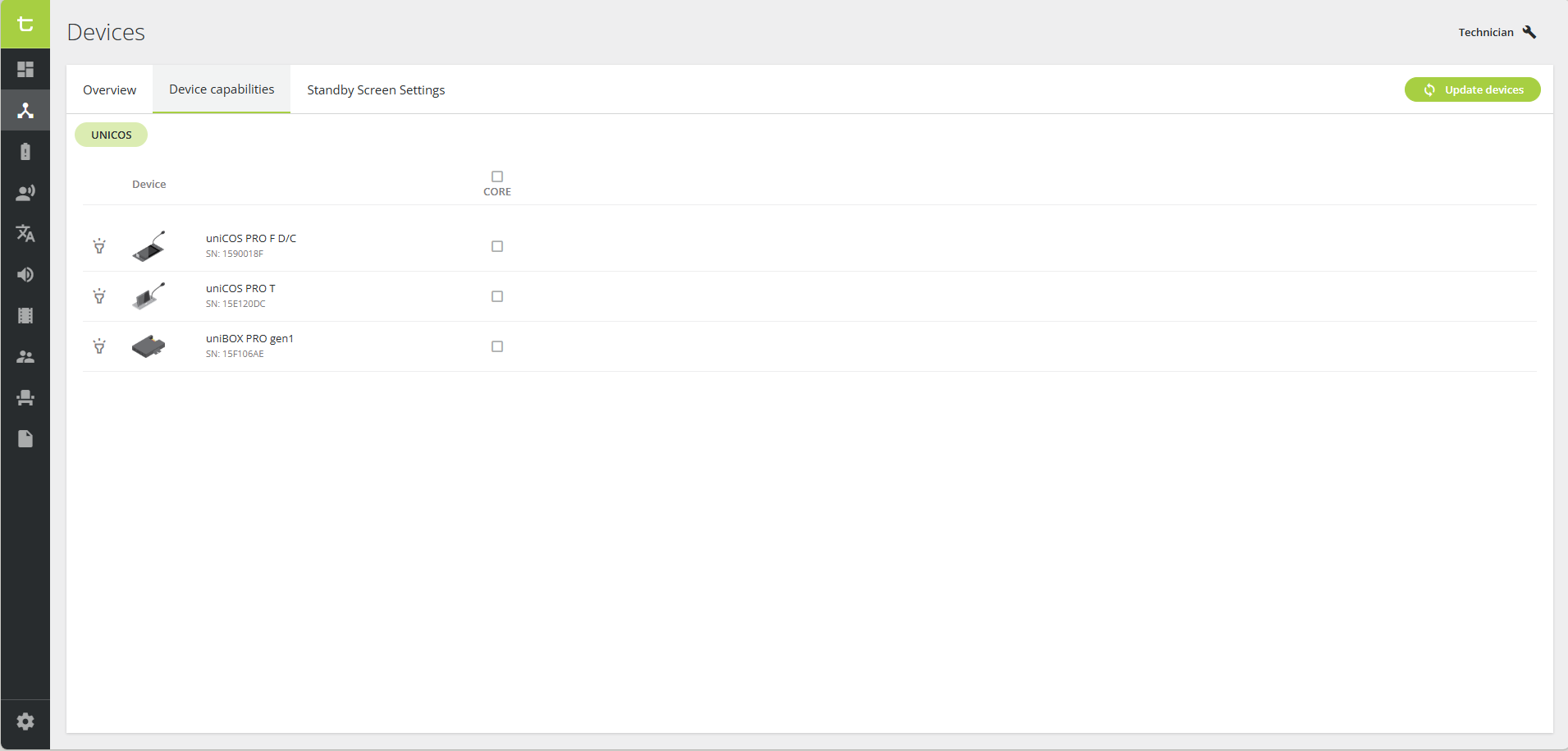
- To configure a specific unit, select (or unselect) the CORE checkbox of the desired uniCOS or uniBOX unit.
💡Click the flashlight icon next to a unit to make its microphone LED light up, helping you identify the correct device.
 - To configure all units at the same time, select (or unselect) the main CORE checkbox at the top of the column.
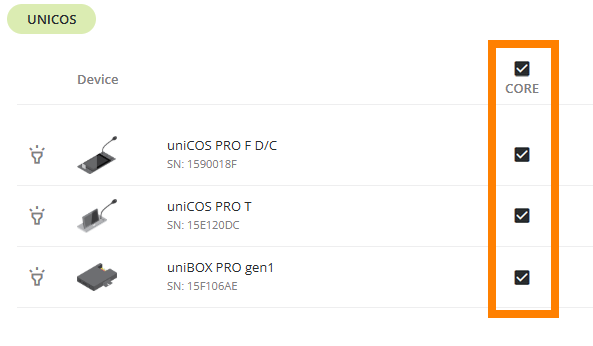
- The units are now configured with the desired interface.
 next to a unit to make its microphone LED light up, helping you identify the correct device.
ℹ️ For more information on the uniCOS PRO T and CORE T interfaces, please refer to the Plixus & Confidea G4 Units – User Guide.
Please download the following document for all questions you may have about the differences between CoCon and Confero :

Confero supports the following languages:
Arabic (U.A.E), Belarus, Chinese (S), Chinese (T), Croatian, Danish, Dutch, English, Finnish, French, German, Hebrew, Hindi, Italian, Japanese, Kazakh, Korean, Latvian, Lithuanian, Norwegian, Persian (Farsi), Polish, Portuguese, Romanian, Russian, Spanish, Swedish, Thai, Turkish, Ukrainian, Uzbek, Vietnamese.
In case your preferred language is not in the list, you can contact Televic by clicking here.
When using Confero, you can upload a standby image to display on the screen of your conference devices (when possible).
| Device | Format | Resolution |
|---|---|---|
| uniCOS F-MM7 | png, jpg, jpeg | 1024 x 600 |
| uniCOS T(F)-MM10 | png, jpg, jpeg | 1280 x 800 |
| uniBOX PRO | png, jpg, jpeg | 1920 x 1080 |
| Confidea FLEX / FLEX G4* | png, jpg, jpeg | 480 x 96 |
* The resolution of the Confidea FLEX / FLEX G4 is 480 x 128, but the standby image will be downsized to 480 x 96.
The headphones will output the headphones floor (or loudspeaker floor if headphones floor is not present) regardless of the seat mapping in different groups.
Yes. Right now you, you can export/import the backup system configuration that contains all audio configurations. In a future version, it will be possible to export/import individual configurations.
The sensitivity of the individual microphone can be controlled from within the synoptic view. A permanent setting can be set as Technician, and the Operator or Chairperson can tune it during the meeting.